Advanced
All Categories
Guns & Firearms
Gun Parts
Ammunition
Scopes, Sights & Optics
Ammunition Reloading
Black Powder & Muzzleloaders
Class 3 Firearms, NFA & Destructive Devices
Collectible Firearms
Holsters & Gun Leather
Hunting Supplies & Gear
Shooting Supplies
Air Guns
Archery & Bow Hunting
Books, Videos & Literature
Cameras & Photo
Clothing, Jewelry, Watches
Coins & Precious Metals
Collectibles & Militaria
Concealed Carry
Fishing Tackle
Home Electronics
Knives & Swords
Less-Lethal Weapons
Miscellaneous
Mobile Audio
Musical Instruments & Gear
Non-Firing Replica Guns
Storage: Cases, Safes, Cabinets
Survival Gear
Tactical Gear
Taxidermy, Antlers & Mounts
Tools & Hardware
Vehicles
Water Sports / Boating
Search
Toggle navigation
Sign In
Register
Advanced Search
My GunBroker
Buying
Selling
Watchlist
Saved Searches
Shipping
Toolbox
Account
Support
Buy
Sell
Coupons
Stores
Articles
Videos
Help
Sign In
Register
Sign In
Register
Advanced Search
My GunBroker
Buying
Selling
Watchlist
Saved Searches
Shipping
Toolbox
Account
Support
Browse Categories
Browse Categories
Full Directory
Guns & Firearms
All Guns & Firearms
Pistols
All Pistols
Revolvers
Semi Auto Pistols
Single Shot Pistols
Other Pistols
Rifles
All Rifles
Bolt Action Rifles
Lever Action Rifles
Pump Action Rifles
Semi Auto Rifles
Single Shot Rifles
Other Rifles
Shotguns
All Shotguns
Bolt Action Shotguns
Lever Action Shotguns
Over Under Shotguns
Pump Action Shotguns
Semi Auto Shotguns
Side By Side Shotguns
Single Shot Shotguns
Other Shotguns
Combination Guns
Cowboy Action Shooting
Gun Parts
All Gun Parts
Pistol Parts
All Pistol Parts
Pistol Barrels
Pistol Frames
Pistol Grips
Pistol Magazines & Pistol Clips
Pistol Slides
Small Pistol Parts
Other Pistol Accessories & Parts
Rifle Parts
All Rifle Parts
Rifle Barrels
Rifle Bolts
Rifle Lowers
Rifle Magazines & Rifle Clips
Rifle Stocks
Small Rifle Parts
Other Rifle Accessories & Parts
Shotgun Parts
All Shotgun Parts
Shotgun Barrels
Shotgun Chokes
Shotgun Magazines & Shotgun Clips
Shotgun Receivers
Shotgun Stocks
Other Shotgun Accessories & Parts
1911 Parts
All 1911 Parts
1911 Barrels
1911 Frames
1911 Grips
1911 Magazines & 1911 Clips
1911 Slides
1911 Triggers
Small 1911 Parts
Other 1911 Accessories & Parts
AK47 Parts
All AK47 Parts
AK47 Barrels
AK47 Bolts
AK47 Lowers
AK47 Magazines & AK47 Clips
AK47 Stocks, Forends, Forearms
AK47 Triggers
AK47 Uppers
Small AK47 Parts
Other AK47 Accessories & Parts
AK74 Parts
All AK74 Parts
AK74 Barrels
AK74 Bolts
AK74 Lowers
AK74 Magazines & AK74 Clips
AK74 Stocks, Forends, Forearms
AK74 Triggers
AK74 Uppers
Small AK74 Parts
Other AK74 Accessories & Parts
AR10 Parts
All AR10 Parts
AR10 Barrels
AR10 Bolts
AR10 Lowers
AR10 Magazines & AR10 Clips
AR10 Stocks, Forends, Forearms
AR10 Triggers
AR10 Uppers
Small AR10 Parts
Other AR10 Accessories & Parts
AR15 Parts
All AR15 Parts
AR15 Barrels
AR15 Bolts
AR15 Lowers
AR15 Magazines & AR15 Clips
AR15 Stocks, Forends, Forearms
AR15 Triggers
AR15 Uppers
Small AR15 Parts
Other AR15 Accessories & Parts
Glock Parts
All Glock Parts
Glock Barrels
Glock Frames
Glock Grips
Glock Magazines & Glock Clips
Glock Slides
Glock Triggers
Small Glock Parts
Other Glock Accessories & Parts
HK Parts
All HK Parts
HK Barrels
HK Frames
HK Grips
HK Magazines & HK Clips
HK Slides
HK Triggers
Small HK Parts
Other HK Accessories & Parts
SKS Parts
All SKS Parts
SKS Barrels
SKS Bolt Carrier
SKS Lowers
SKS Magazines & SKS Clips
SKS Stocks & SKS Handguards
SKS Triggers
Small SKS Parts
Other SKS Parts & Accessories
TC Contender Parts
All TC Contender Parts
Small TC Contender Parts
TC Contender Barrels
TC Contender Frames
TC Contender Grips
TC Contender Triggers
Other TC Contender Accessories & Parts
Gun Parts Kits
Slings & Sling Parts
All Slings & Sling Parts
Slings Parts & Accessories
Slings
Weapon Lights
Other Gun Accessories & Parts
Ammunition
All Ammunition
Ammo Storage
Large Bore, Inert & Cannon Ammo
Pistol Ammunition
Rifle Ammunition
Shotgun Shells
Vintage Ammo
Other Ammunition
Scopes, Sights & Optics
All Scopes, Sights & Optics
Binoculars
Gun Scopes
Gun Sights
Laser Sights
Night Vision
Range Finders
Red Dots Sights
Scope Accessories & Scope Parts
Sight Magnifiers
Spotting Scopes
Thermal Sights
Ammunition Reloading
All Ammunition Reloading
Reloading Equipment
All Reloading Equipment
Case Preparation
Powder Measures & Scales
Reloading Accessories
Reloading Books & Manuals
Reloading Dies
Reloading Presses & Kits
Reloading Tools
Shellholders & Die Accessories
Other Reloading Equipment
Reloading Supplies
All Reloading Supplies
Reloading Brass
Reloading Bullets
Reloading Hulls
Reloading Molds
Reloading Powder
Reloading Primers
Reloading Shot
Reloading Wads
Other Reloading Supplies
Black Powder & Muzzleloaders
All Black Powder & Muzzleloaders
Black Powder & Pyrodex
Black Powder Bullets & Sabots
Black Powder Pistols & Muzzleloader Pistols
Black Powder Rifles & Muzzleloader Rifles
Muzzleloading Primers
Percussion Caps
Other Muzzleloader Supplies & Black Powder Parts
Class 3 Firearms, NFA & Destructive Devices
All Class 3 Firearms, NFA & Destructive Devices
Any Other Weapon (AOW)
Class 3 Parts & Accessories
Destructive Devices
Machine Guns
Short Barrel Rifles (SBR)
Silencers & Suppressed Firearms
Collectible Firearms
All Collectible Firearms
Antique Guns
Collectible Gun Parts & Accessories
Commemorative Guns
Curios & Relics
Muzzleloading Collectibles
Other Collectible Guns
Holsters & Gun Leather
Hunting Supplies & Gear
All Hunting Supplies & Gear
Animal Traps
Bags & Packs
Camo Clothing & Accessories
Flashlights
Game Calls
Game Cameras
Game Feed & Feeders
GPS
Hunting Accessories
Hunting Decoys
Hunting Dog Supplies
Hunting Scents & Deer Lure
Scent Elimination
Tree Stands
Other Hunting Gear
Shooting Supplies
All Shooting Supplies
Gun Cleaning Kits & Gun Cleaning Supplies
Gun Rests, Vises & Benches
Gunsmithing Tools & Gunsmith Supplies
Shooting Glasses & Hearing Protection
Shooting Targets
Air Guns
All Air Guns
Air Gun Accessories
Air Pistols
Air Rifles
Airsoft
Paintball Guns
Archery & Bow Hunting
All Archery & Bow Hunting
Archery Supplies
Bows
Crossbows
Books, Videos & Literature
All Books, Videos & Literature
Books
CD-ROMS
Magazines
Videos & DVDs
Cameras & Photo
All Cameras & Photo
Camcorders
Camera Batteries
Camera Cases, Bags & Covers
Camera Chargers & Cradles
Camera Flashes & Lighting
Camera Lens Filters
Camera Tripods & Supports
Digital Cameras
Film
Film Cameras
Memory Cards
Other Camera & Photo Accessories
Clothing, Jewelry, Watches
All Clothing, Jewelry, Watches
Clothing
All Clothing
Backpacks, Totes & Luggage
Belts & Belt Buckles
Coats & Jackets
Eyewear
Gloves
Hats & Headwear
Pants & Coveralls
Shirts, Sweatshirts & Vests
Shoes, Boots & Footwear
Other Clothing
Jewelry
All Jewelry
Anklets
Anniversary Bands
Bangles
Bellybutton Rings
Boxes, Bags & Pouches
Bracelets
Chains
Charms
Class Rings
Cleaners
Cluster Rings
Coin Rings
Cufflinks
Displays
Earrings
Eternity Rings
Fashion Rings
Gems
Hair Barrettes
Initial Rings
Jewelry Tools
Keychains
Money Clips
Necklaces
Pendants
Pill boxes
Pins / Brooches
Retail Supplies
Solitaire Rings
Teeth / Grillz
Testers & Accessories
Thimbles
Tie Bars
Wedding Bands
Wedding Sets
Watches & Clocks
All Watches & Clocks
Grandfather Clocks
Pocket Watches
Table Clocks
Watch Repair
Wrist Watches
Coins & Precious Metals
All Coins & Precious Metals
Bullion & Bars
Collectible Coins
Gold Coins
Silver Coins
US Coins / Currency
Collectibles & Militaria
All Collectibles & Militaria
Badges & Insignias
Civil War Collectibles
Flags
Gun Posters, Catalogs & Flyers
Logo Merchandise
Old West Collectibles
Souvenirs
WW1 & WW2 Collectibles
Other Collectibles
Other Military Collectibles
Concealed Carry
All Concealed Carry
Concealed Carry Clothing
Concealed Carry Clothing for Women
Concealed Carry Holsters
Concealed Carry Purses
Fishing Tackle
All Fishing Tackle
Fly Fishing Tackle
All Fly Fishing Tackle
Fly Fishing Flies
Fly Fishing Reels
Fly Fishing Rod & Reel Combos
Fly Fishing Rods
Other Fly Fishing Equipment
Freshwater Fishing Tackle
All Freshwater Fishing Tackle
Freshwater Fishing Baits & Lures
Freshwater Fishing Reels
Freshwater Fishing Rod & Reel Combos
Freshwater Fishing Rods
Other Freshwater Fishing Equipment
Saltwater Fishing
All Saltwater Fishing
Saltwater Fishing Baits & Lures
Saltwater Fishing Reels
Saltwater Fishing Rod & Reel Combos
Saltwater Fishing Rods
Other Saltwater Fishing Equipment
Fish Finders
Fishing Collectibles
Tackle Storage
Terminal Tackle
Other General Fishing
Home Electronics
All Home Electronics
Batteries
Charging Cables
Headphones
Home Security
Home Theater
Portable Audio
TV Mounts and Accessories
Universal Phone Accessories
Video Games & Consoles
Knives & Swords
All Knives & Swords
Automatic Knives
Bayonets
Collectible Knives
Daggers
Fixed Blade Knives
Hunting Knives
Knife Accessories
Pocket Knives
Swords & Axes
Less-Lethal Weapons
Miscellaneous
All Miscellaneous
Domain Names
Everything Else
Gunsmithing
Health & Fitness
Hunting Trips & Safaris
Land & Leases
Toys
Mobile Audio
All Mobile Audio
Amplifiers
Auto Lighting
Automotive Accessories
Cable, Wire & Connectors
Dash Kits & Accessories
Full Range Speakers
Fuses & Accessories
Installation Accessories
Marine & ATV Amplifiers
Marine & ATV Lighting
Marine & ATV Receivers
Marine & ATV Speakers
Mobile Security
Receivers
Sound Processors
Speaker Accessories
Speaker Boxes
Woofers
Musical Instruments & Gear
All Musical Instruments & Gear
Band & Orchestra Accessories
Band & Orchestra Instruments
DJ Equipment
Drums & Percussion
Drums & Percussion Accessories
Guitar & Bass Accessories
Guitars & Basses
Music Displays, Bags & Cases
Musical Instruments-Other
Pianos, Keyboards & Organs
Stringed Instruments - Other
Non-Firing Replica Guns
Storage: Cases, Safes, Cabinets
All Storage: Cases, Safes, Cabinets
Furniture & Cabinets
Gun Cases & Gun Storage
Gun Safes & Trigger Locks
Survival Gear
Tactical Gear
Taxidermy, Antlers & Mounts
All Taxidermy, Antlers & Mounts
Animal Skin, Pelts & Rugs
Animal Taxidermy - Large
Animal Taxidermy - Small
Fish Taxidermy
Taxidermy Supplies
Tools & Hardware
All Tools & Hardware
Air Tools
Automotive Tools
Electrical Tools
Hand Tools
Plumbing Tools
Power Tools
Tool Boxes & Storage
Welding Tools
Other Tools & Hardware
Vehicles
All Vehicles
ATVs & Off-road Vehicles
Cars
E-Bikes
Motorcycles
Trucks
Water Sports / Boating
All Water Sports / Boating
Boating Parts & Accessories
Electronics
Motors & Controls
Safety, Fenders & Lines
Trailers
Shopping Cart
0
Buy
Sell
Coupons
Stores
Articles
Videos
Help
Certain features of GunBroker.com will not work properly if JavaScript is disabled.
Guns For Sale
gun auction
Showcase Items
More
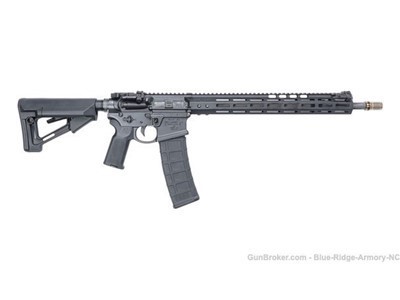
NOVESKE RIVAL SS FULLY LOADED BRAND NEW 5.56 GEN 4 N4
$2,599.99
3d +
0 Bids
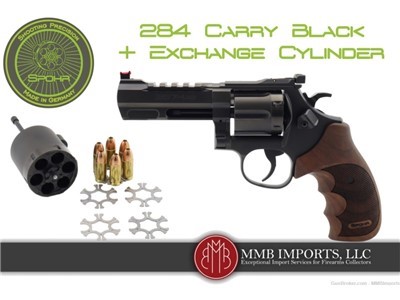
New 2024 Model: Spohr 284 Carry Black .357 + 9mm Cylinder
NIB from Master German Gunsmith
$4,399.00
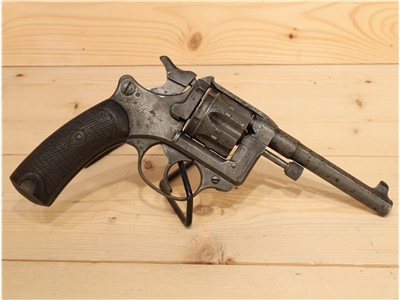
St Etienne 1873 8X27
$650.00
5d +
0 Bids
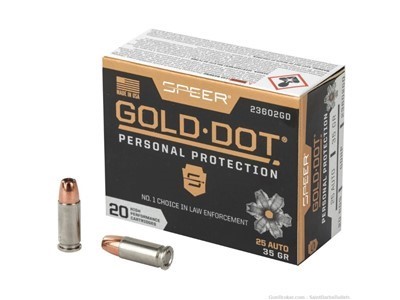
Speer Gold Dot 25acp 35gr Hp – 20 Rounds
$24.24
KIMBER MICRO 9 9MM PSTL STS
$609.99
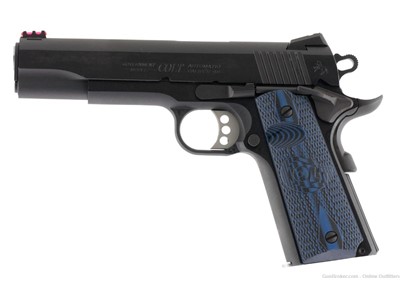
Colt 1911 Competition Government 45 ACP 5" NMB 8+1 Blued O1970CCS FO Sights
$899.00
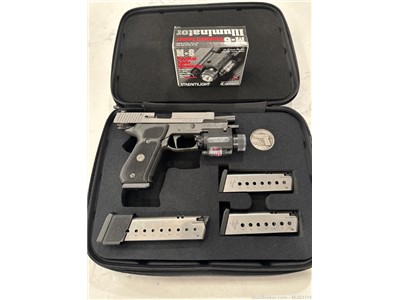
Sig Sauer P220 Legion 45ACP DA/SA with Tactical Laser/Light combo
$1,799.00
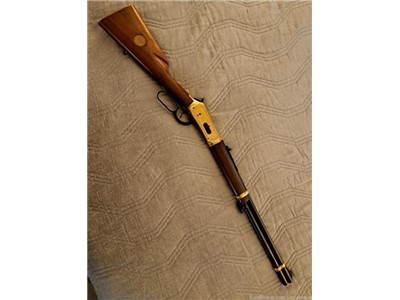
WINCHESTER MOD 94 GOLDEN SPIKE COMMEMORATIVE .30-30
$949.00
1d +
0 Bids
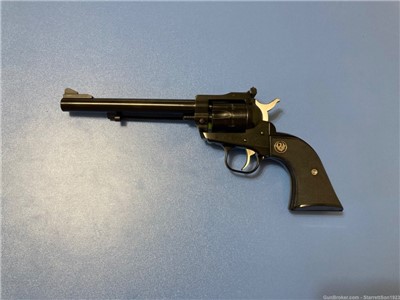
RUGER SINGLE SIX .22LR/.22MAG 6.5" 6-SHOT REVOLVER BLACK AS SKU:0622
RUGER SINGLE SIX .22/.22MAG 6.5" 6-SHOT SKU: 0622
$689.00
6d +
0 Bids
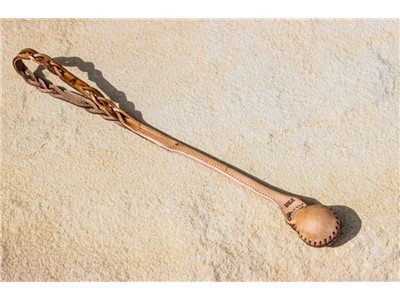
The ULTIMATE SAP AKA Slap Jack one of the best self defense weapons!
$75.00
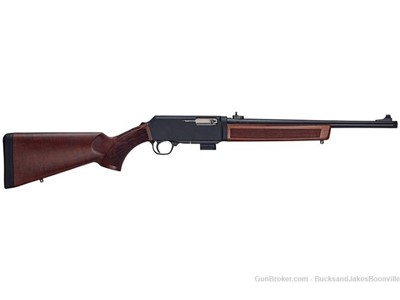
HENRY REPEATING ARMS HOMESTEADER CARBINE 9MM
$785.00
5d +
0 Bids
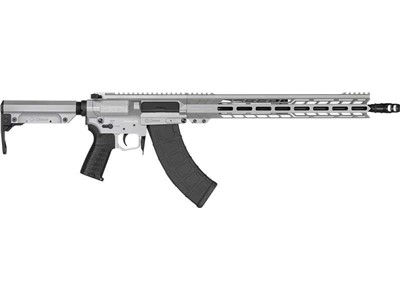
CMMG Resolute CMMG MK47 76AFCCA-TI Resolute-Mk47
CMMG Resolute CMMG MK47 76AFCCA-TI
$1,799.00
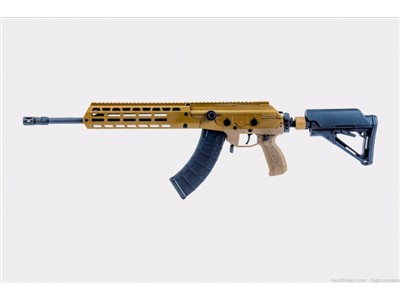
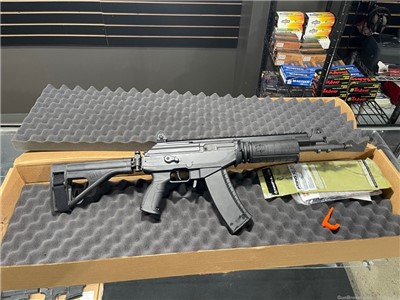
IWI Galil Ace Gen2 Limited Edition 7.62x39 16" 30rd Semi-Auto Rifle | FDE
$1,950.95
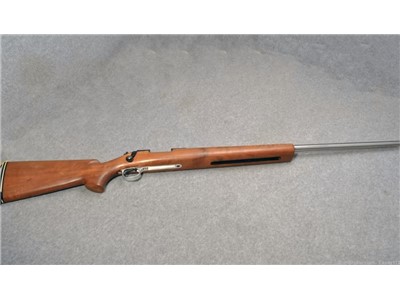
Remington 40 X .22-250 REM
$370.00
3d +
6 Bids
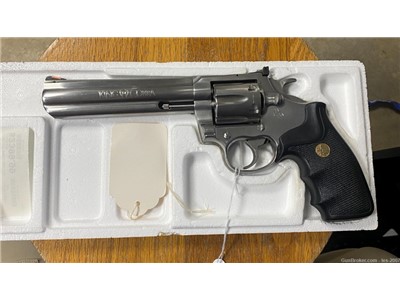
1988 Colt King Cobra Unfired Original Box Collector Grade
$1,300.00
8h +
0 Bids
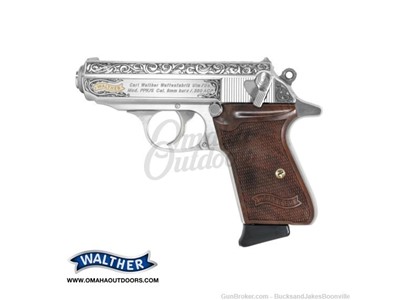
Walther PPK/S Gold Ribbon
$1,999.00
3d +
0 Bids
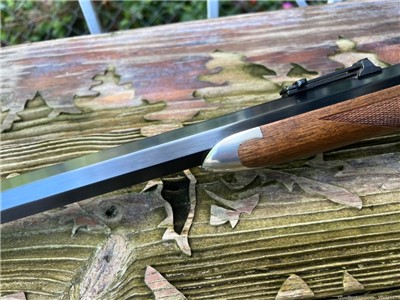
Cimarron 1874 sharps 45/70 govt. Beautiful rifle. 1885
$1,800.00
1d +
0 Bids
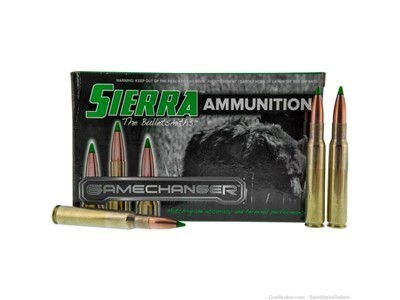
Sierra GameChanger 30-06 165 Grain Tipped GameKing - 20 Rounds
$50.09
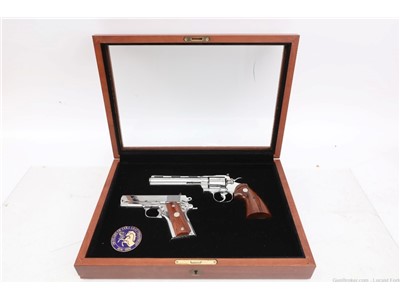
Colt Double Diamond Set! 1of1000 PYTHON & 1911 Officers 45acp
150th Anniversary Colt Ultimate Stainless Display
$2,227.00
8d +
12 Bids
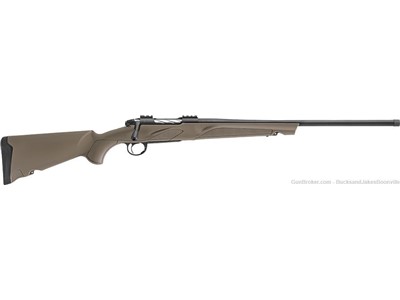
FRANCHI MOMENTUM 6.5CM FDE
$699.00
2d +
0 Bids
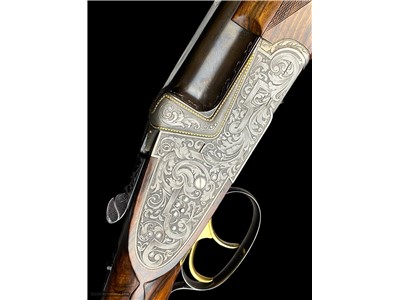
AS-NEW JOH. OUTSCHAR DELUXE 20GA O/U GAME GUN - EXHIBITION WOOD & ENGRAVING
$17,250.00
13” Galil Ace 5.45x39 pistol with brace 1 of 545 !
1 of 545 made 5.45x39
$1,775.00
13h +
17 Bids
Very Nice Baker LC Smith Batavia Ejector - 16 Gauge SxS - Great Condition!
$2,999.95
Nightforce ATACR-4-20x50mm-34mm Tube-Illuminated MOA-XT FFP Reticle-Black
New In Box, No Credit Card Fees!
$3,000.00
Stainless Spring Assist Surgical Steel Knife
$10.00
16h +
0 Bids
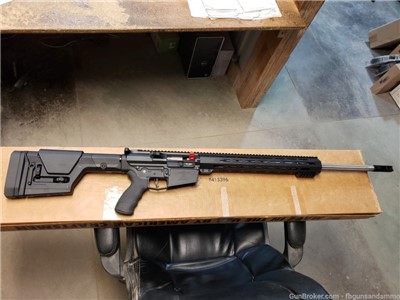
NEW! ALEX PRO APF AR TARGET RIFLE .22-250 REMINGTON 24" AR10 250 REM 24 PRS
$1,999.99
2d +
0 Bids
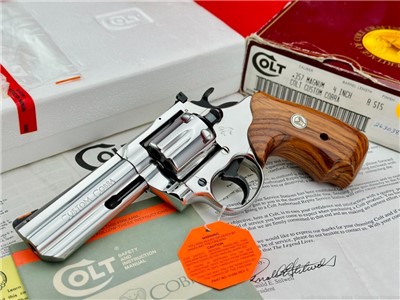
Super RARE 1989 Colt "Custom Cobra" Factory Bright Stainless *1 OF 250 MADE
COLT CUSTOM SHOP - SN# 126CCC - FACTORY ROSEWOOD
$4,225.00
1d +
16 Bids
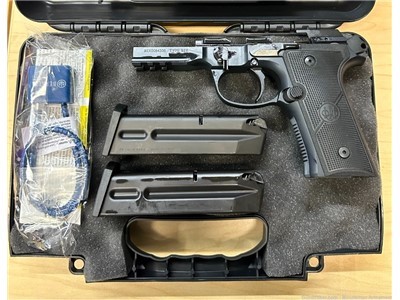
Beretta 92X RDO Frame, Box, Magazines 9mm 92FS M9 Vertec Metal FULL SIZE
$339.00
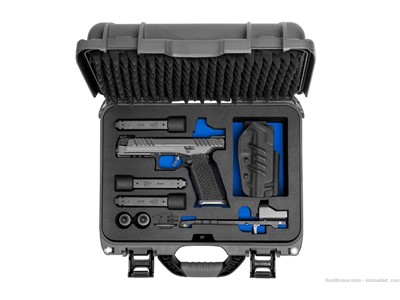
Laugo Arms Alien Creator Evolution – THREADED FULL KIT FREE SHIPPING
$6,050.00
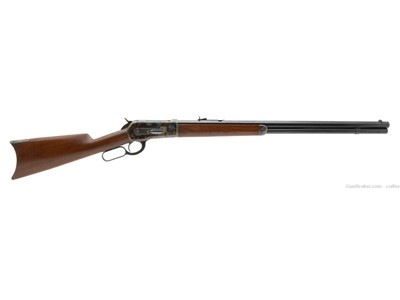
Excellent Winchester 1886 Rifle 40-82 (AW934)
$22,500.00
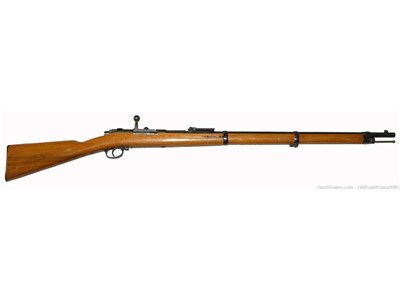
11mm Mauser Model 1871/84 Spandau
$1,250.00
14h +
0 Bids
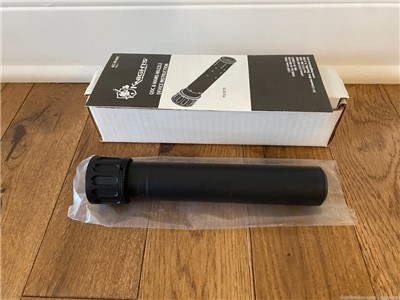
Knight's Armament KAC 7.62 QDC suppressor (P/N: 30178 - discontinued model)
$5,800.00
PROJECT CHILDSAFE FOUNDATION
More
“Pheasant Hunter” by Western Artist Frank Hagel
$705.00
1d +
10 Bids
Friends of NRA - TN
More
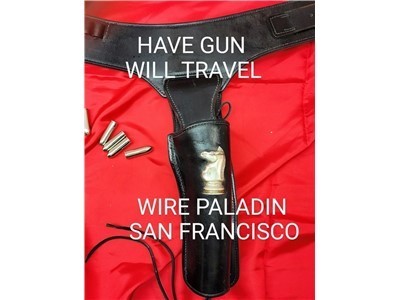
PALADIN GUN BELT & HOLSTER RIG FOR COLT SAA - ARVO OJALA
$795.00
9d +
0 Bids
Smith & Wesson 586 .357 S&W Magnum
$744.99